Interactive Access: NoMachine (!M)
For graphical interactive access to ASC resources, you can use NoMachine (!M). This tool allows you to establish a graphical remote session, making it easier to work interactively on the ASC clusters.
Overview
NoMachine (!M) provides a high-performance remote desktop experience, allowing users to access and manage their ASC resources as if they were working directly on the machine. This is particularly useful for tasks requiring a graphical interface.
Getting started
To begin using NoMachine (!M) for interactive access:
1. Installation: Ensure that you have NoMachine (!M) client software installed on your local machine. You can download it from the NoMachine official website .
2. Configuration: Follow the setup instructions specific to your operating system to configure the NoMachine client. Detailed steps can be found in the documentation provided by NoMachine (!M).
3. Login: To connect to the interactive nodes, the same criteria are valid as for a normal SSH connection, such as VPN. See login
Detailed connection instructions
In the !M client, click 'add' and give it a name.
The pre-set port 4000 and protocol NX can be left as it.
Note
If the connection via port 4000 fails, change the port to 22 and the protocol to SSH
The following hosts are available:
Warning
There are no more hosts connected to VSC4. Use the VSC5 hosts instead.
| Hostname |
|---|
| gui3068-007.vsc.ac.at |
| gui3068-008.vsc.ac.at |
| gui3068-009.vsc.ac.at |
| gui3068-010.vsc.ac.at |
| gui3068-011.vsc.ac.at |
| gui3068-012.vsc.ac.at |
Note
Please log off once you are finished, as the total number of licenses is limited on our side.
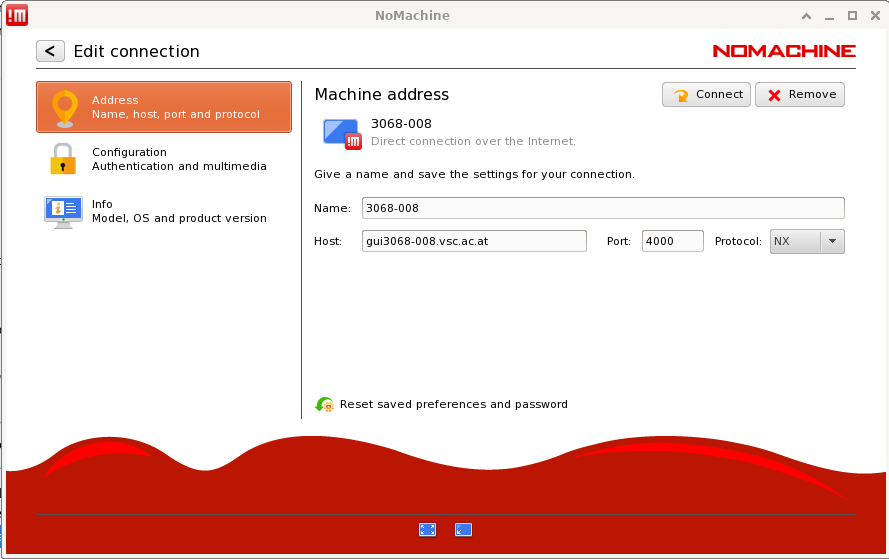
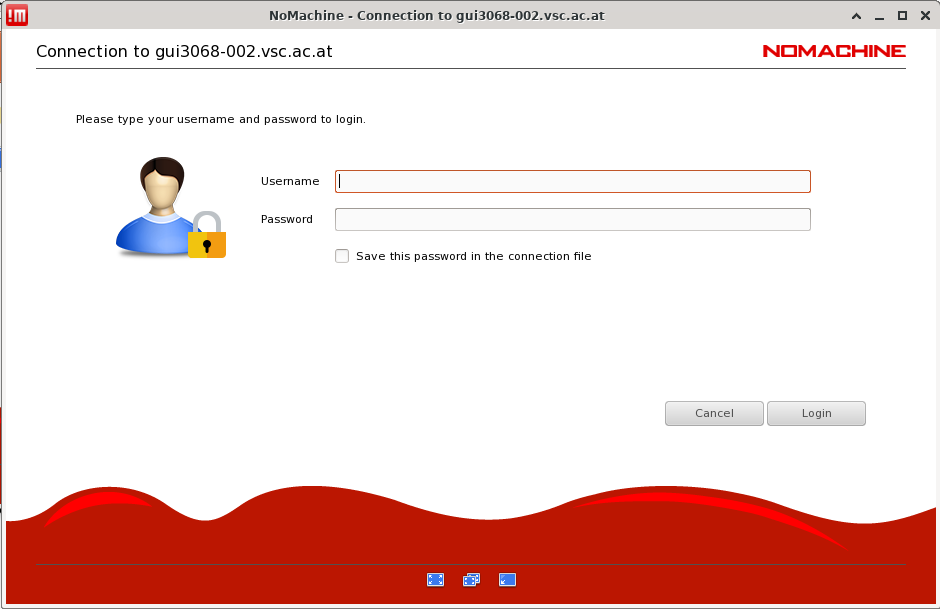
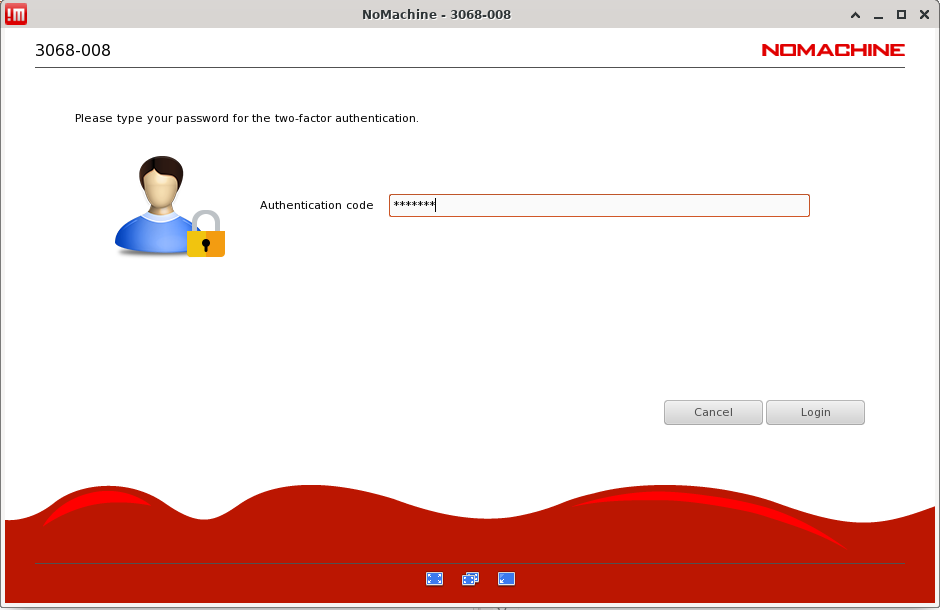
Click 'connect' and a new window will open -> enter ASC username and password and possible OTP.
Once the connection is established, click on 'Create a new virtual desktop' or click on one you created in a previous session.
