Creating an ASC account
Create a new account without an invitation (project managers)
If you are a project manager you need to signup directly and create a project afterwards.
Note
If you need an ASC account just for WireGuard access but are not in any MUSICA project, also directly sign up.
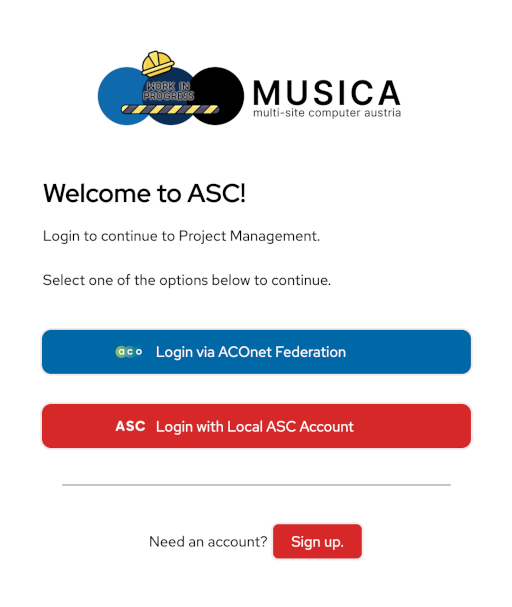
Open the website auth.asc.ac.at in your browser and click the Sign Up button as shown at the bottom of the following picture.
Via an invite link (regular users)
If you received an invitation link per e-mail you will see similar steps, however some of the fields are already prefilled due to you being invited by your project manager.
Different methods of logging in
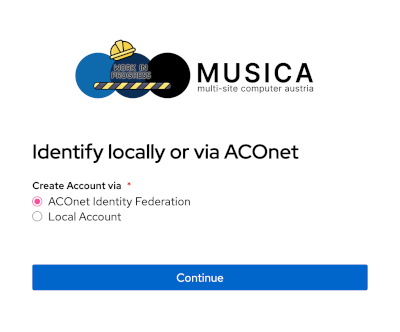
Regardless of your account creation method (signup or invitation) you will then have to choose to authenticate using the "ACOnet Identity Federation" or by creating a new local ASC account.
Signup using the federation is recommended
If your organization is not part of the federation you need to select the Local Account option.
ACOnet Federation
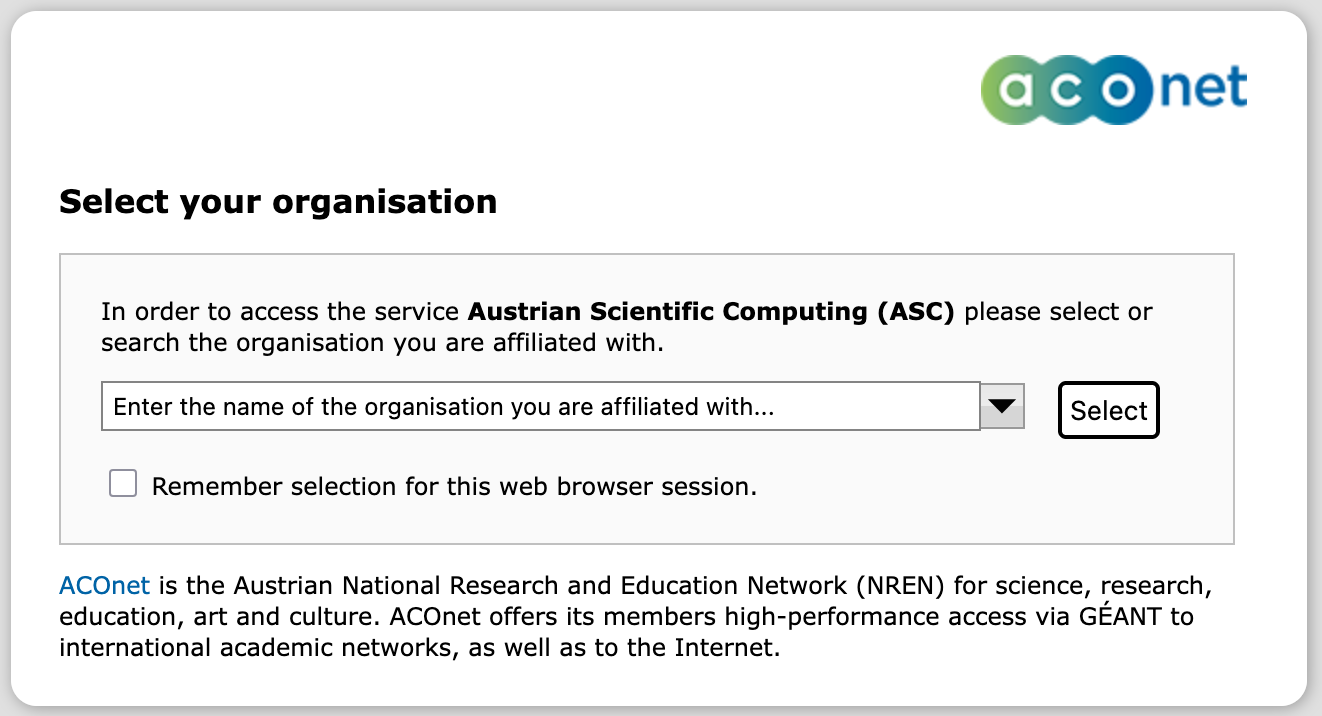
Select your organization from the search bar and proceed to login at your organizations authentication portal, using your institutional credentials.
Other organizations
If your organization is not listed you need to go back to Sign up and create a local account instead (see below)
A local account might need manual activation by us (depending on your organization).
After this you will be shown the details we obtained from your organizations authentication portal.
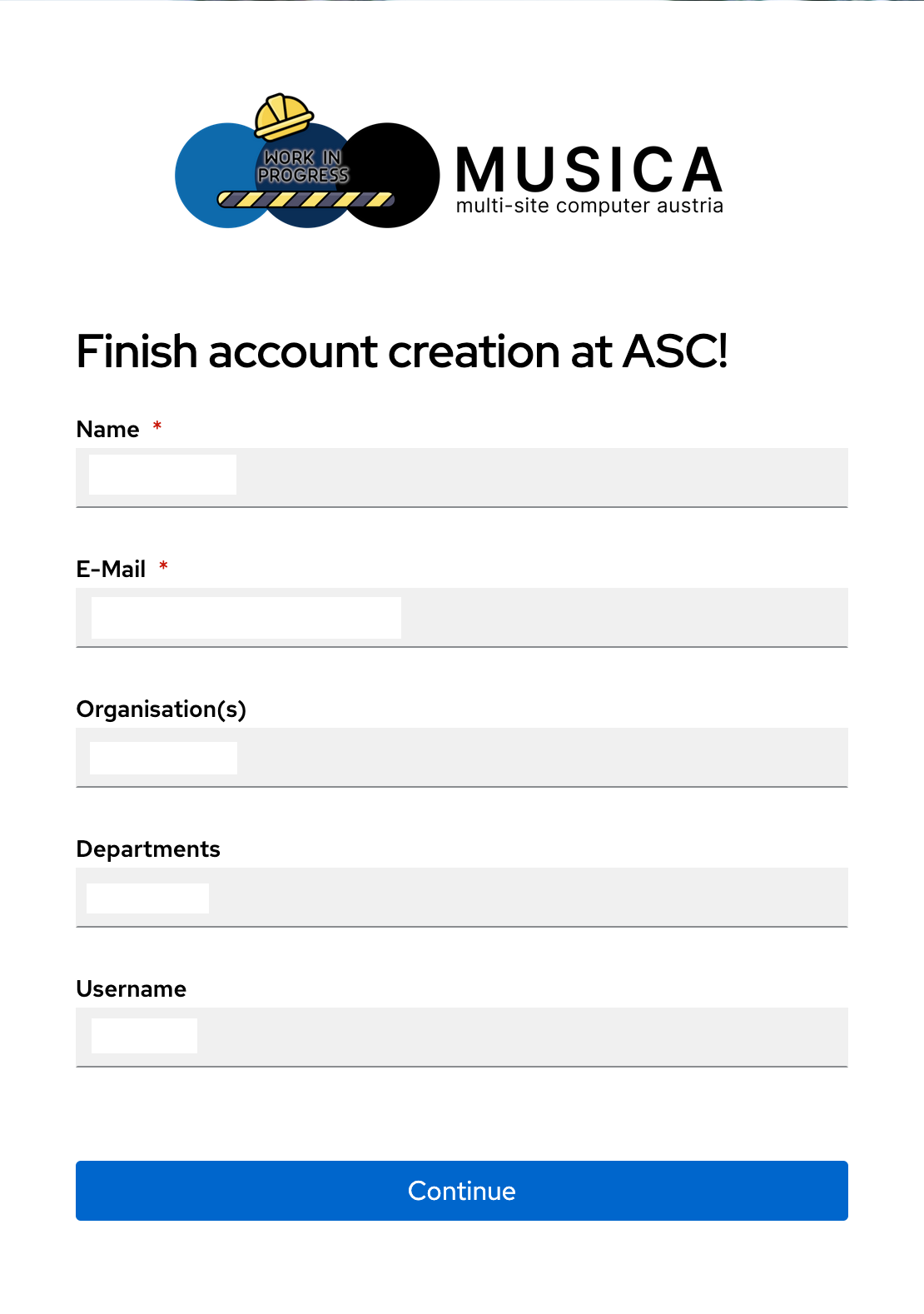
By pressing the Continue button, the account creation will be finished.
Local Account
If you want or need to create a local account, you will be redirected to a prompt to enter a password and other additional information.
Please fill in the data according to your best knowledge and continue to finish the account creation.
E-Mail Verification
Invitation
In case you were invited, this step will not be present
To finish the setup your e-mail address has to be verified. You should have received an e-mail containing a verification link.
Please confirm your account by clicking the link or pasting it into your browser.
Verification Link Timeout
If your verification timed out you can use this page to restart the verification: Verify User E-Mail
Multi-Factor Authentication (MFA)
On your next login after account creation you have to select a multi-factor authentication option.
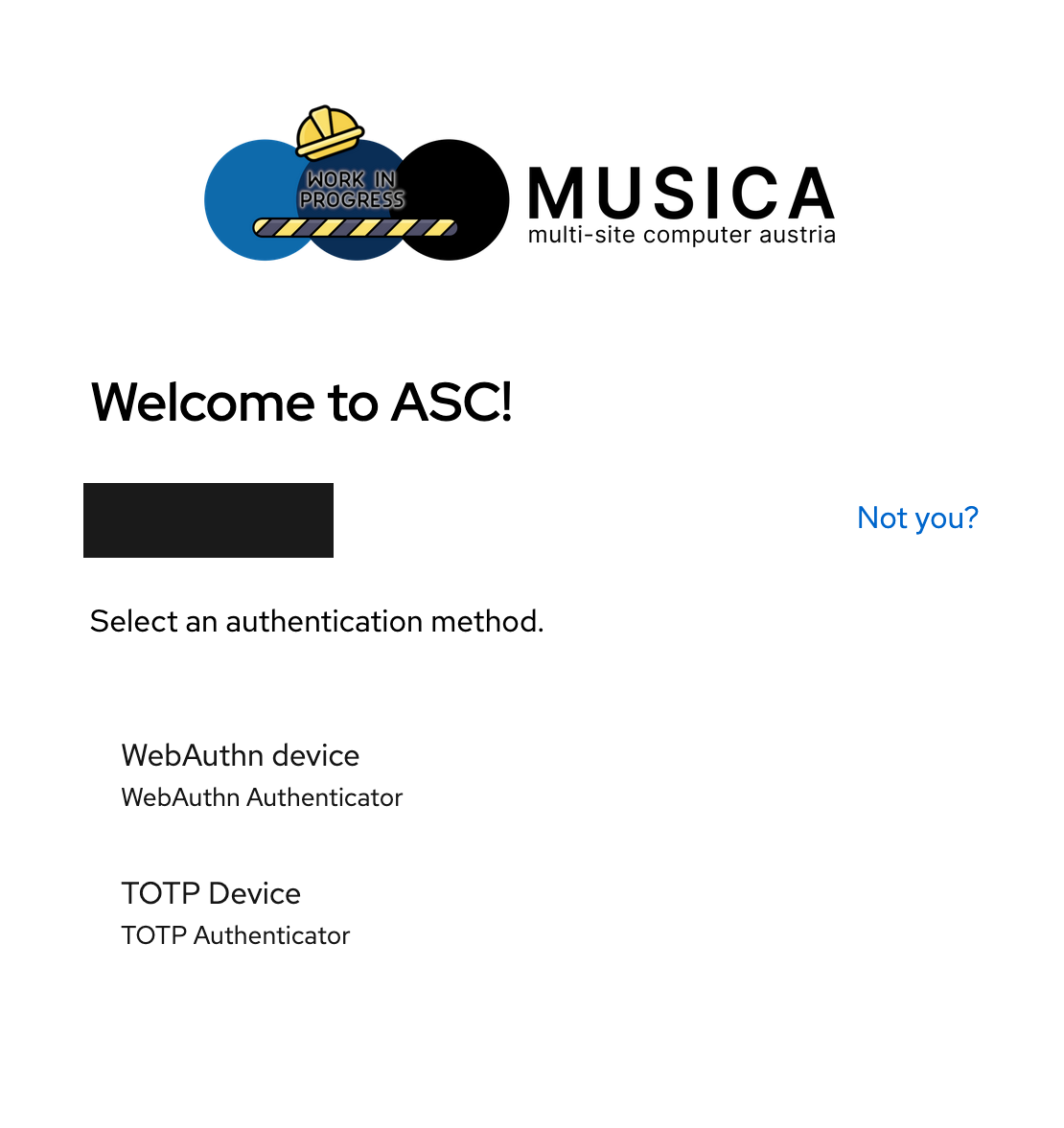
Our currently supported methods are:
- WebAuthn https://en.wikipedia.org/wiki/WebAuthn
- TOTP https://en.wikipedia.org/wiki/Time-based_one-time_password
If you're not familiar with the two provided methods, we recommend to start with TOTP by downloading e.g. "Twilio Authy" or "Google Authenticator" to your smartphone, and then follow the instructions on screen.
If you have a Hardware Key or a Browser/BrowserPlugin (e.g. 1Password) that supports WebAuthn you can select this option for increased sign-in comfort.
PIN required for Hardware Keys
If you use a Hardware Key as Webauthn device, it needs to have a PIN configured.
When your Key does not have a PIN, you are able to add it as a second factor (when managing your methods - see below) but it will not work on login.
Managing your MFA methods
If you want to manage your MFA methods (add additional ones, delete obsolete ones asf.), follow these steps:
- Open https://auth.asc.ac.at/ in your browser
- Log in if your are not already authenticated
- Click on Settings (the cog icon) near the upper right corner
- Select
Credentials(Anmeldedatenin German) in the left menu. - Use
Enroll(Registrierenin German) to add an additional method or device - Select an obsolete method or device in the list (by checking the select-box next to it)
and click
Deleteto remove it - To rename a method or device use the Edit icon in the Actions column
Project management access
If your organization is known to us you will have direct access to our project management tool. You can verify this by examining the "groups" field in the user settings. The group "asc-clad-user" should be present.
New Organization
If your organization does not yet have an agreement with ASC or your organization was not recognized properly please write to our support mail address to get further instructions.
To create a project continue at Create a project & request resources