SSH using Device-Auth Flow
Trust our SSH Certificate Authority (CA) on your system
We sign our SSH host keys with our SSH CA. This improve security and removes the need to trust every single host key. Please add the following line to your .ssh/known_hosts
@cert-authority *.asc.ac.at ecdsa-sha2-nistp256 AAAAE2VjZHNhLXNoYTItbmlzdHAyNTYAAAAIbmlzdHAyNTYAAABBBADeLjSj4J0MFrdxdn9M/mcZi1fqKnQB6ZHjysUlontzFXI9PVoxPjYqMDDO0hM6IM6NCnkiiFqveEvSoXDnGWI=
To log in to MUSICA use the ssh command in your terminal:
ssh [-X] <username>@musica.vie.asc.ac.at
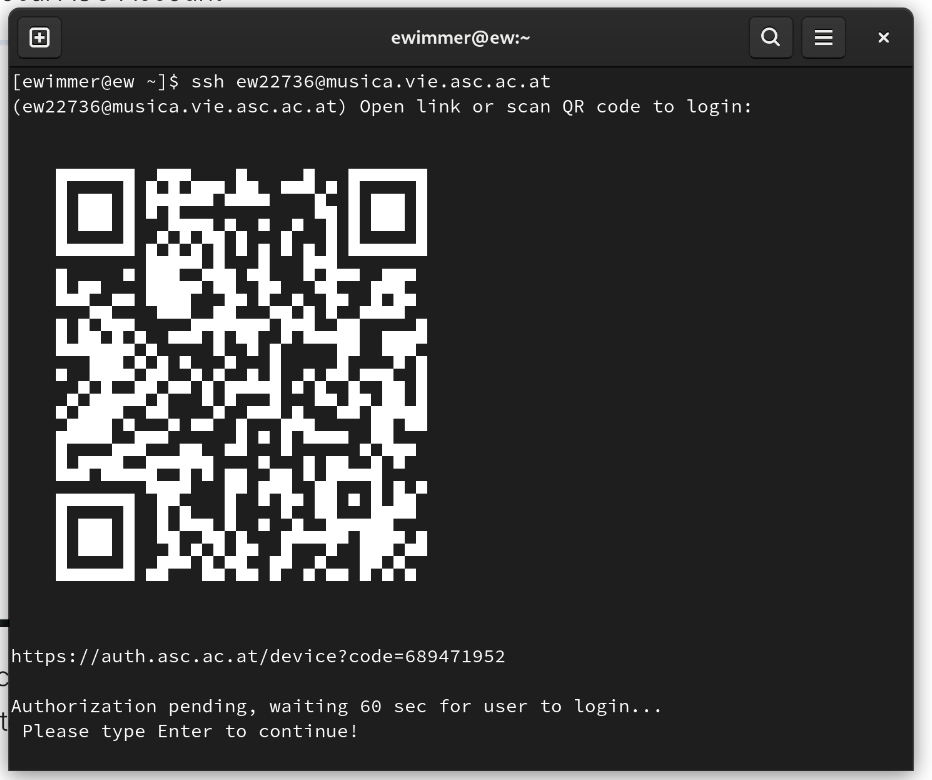
This will print a QR code and a link to the terminal. You can either scan the QR code using your smartphone or click the link (CTRL+Click in most modern terminals) to open up Authentik.
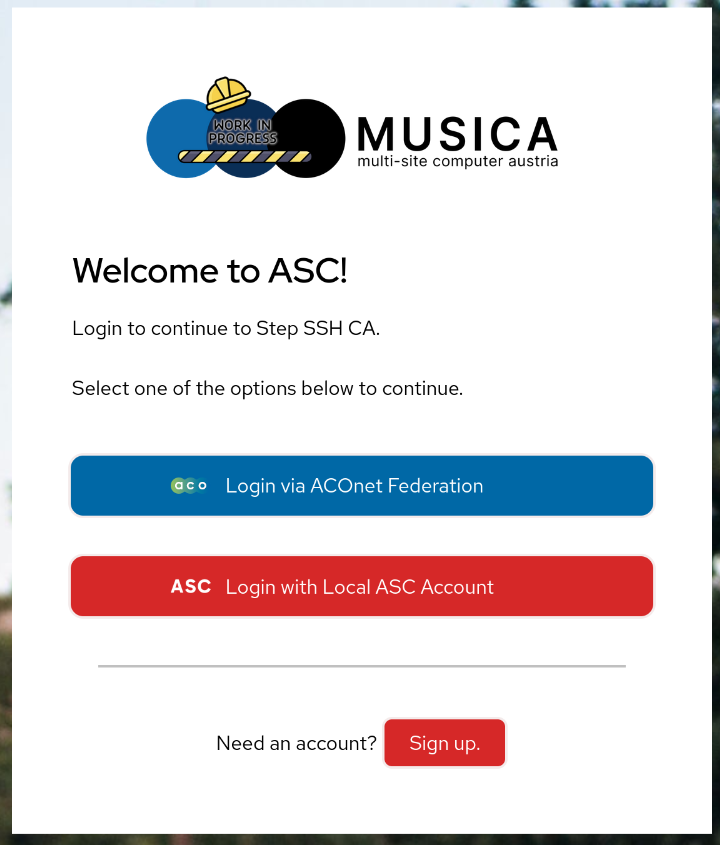
In Authentik you are then presented with two options to verify your user
- If you used your Universities authentication portal use the "Login via ACOnet Federation" button.
- If you signed up using a local account use "Login with Local ASC Account".
In both cases Authentik will then ask you for your second factor (TOTP or WebAuthn). Follow the on-screen instructions for your selected method.
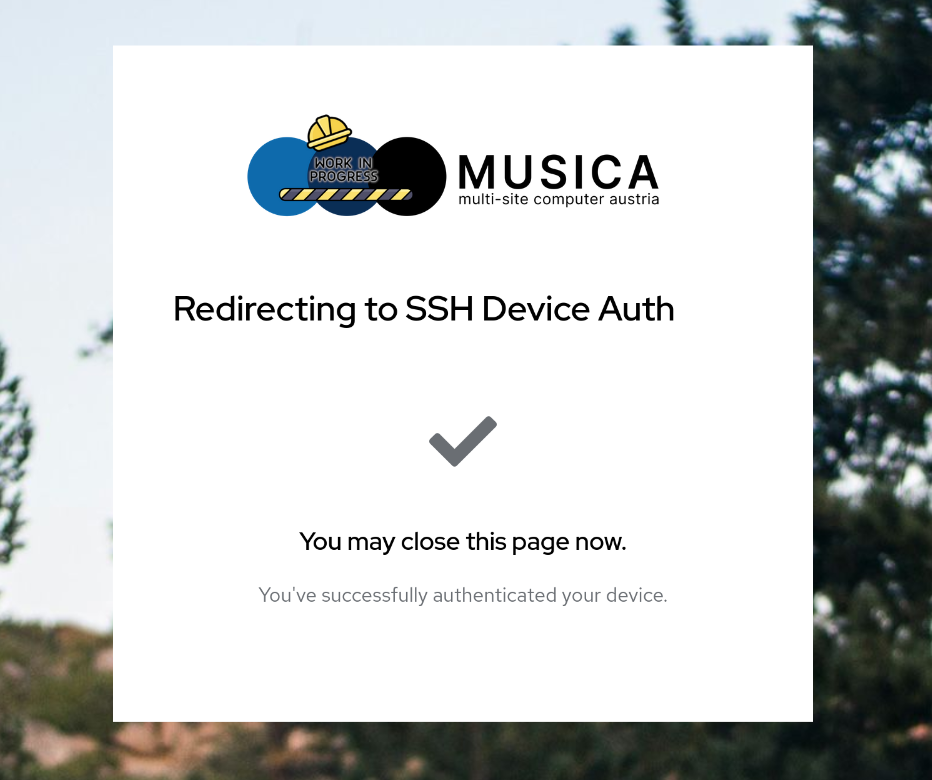
After logging in using one of the methods Authentik will tell you that its ok to close the page now.
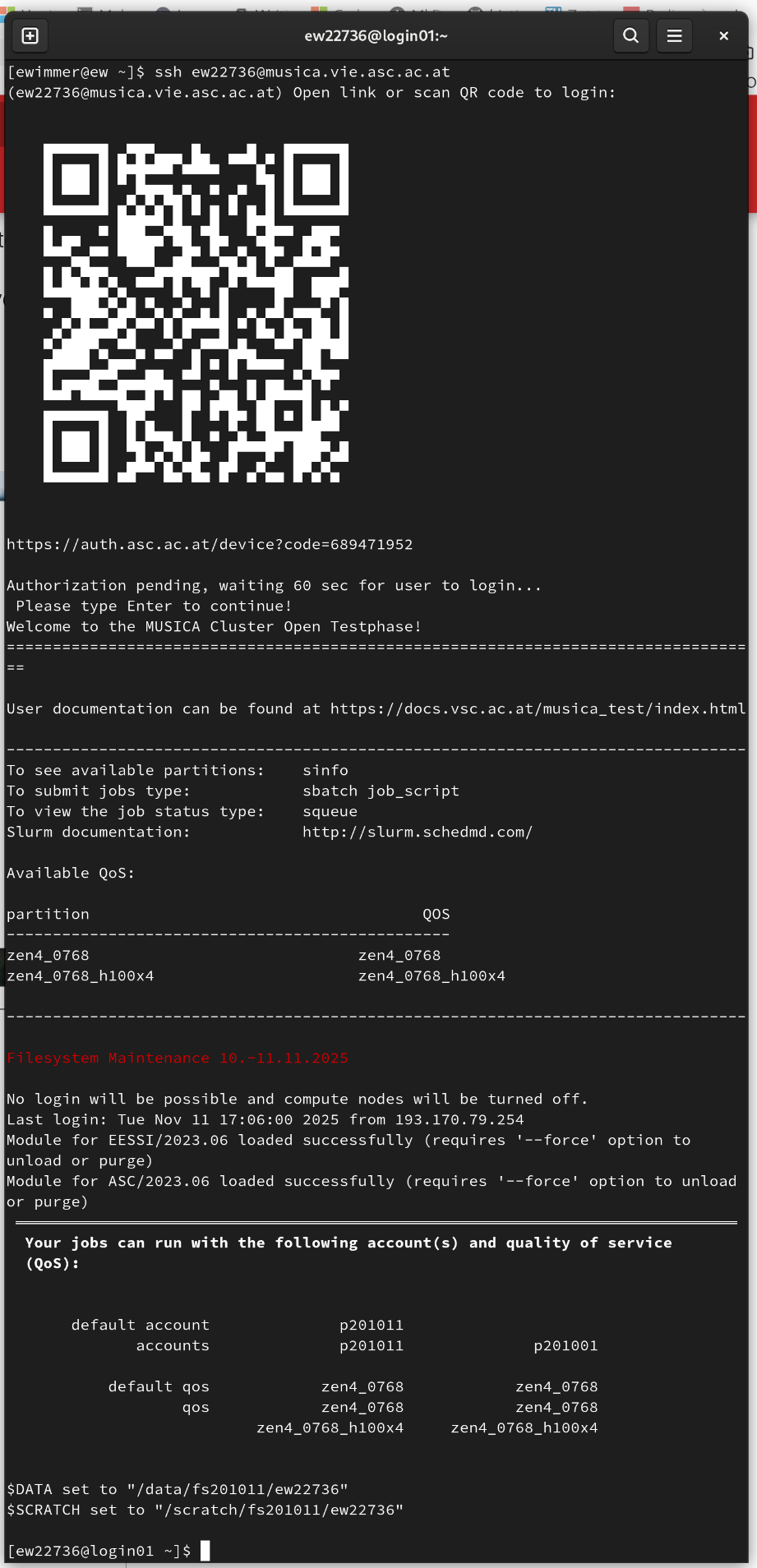
Now hit the 'Enter' key in the terminal - this should complete the login as shown in the picture below.